Test chat and activation
Who this is for: whoever manages the account.
What it is for
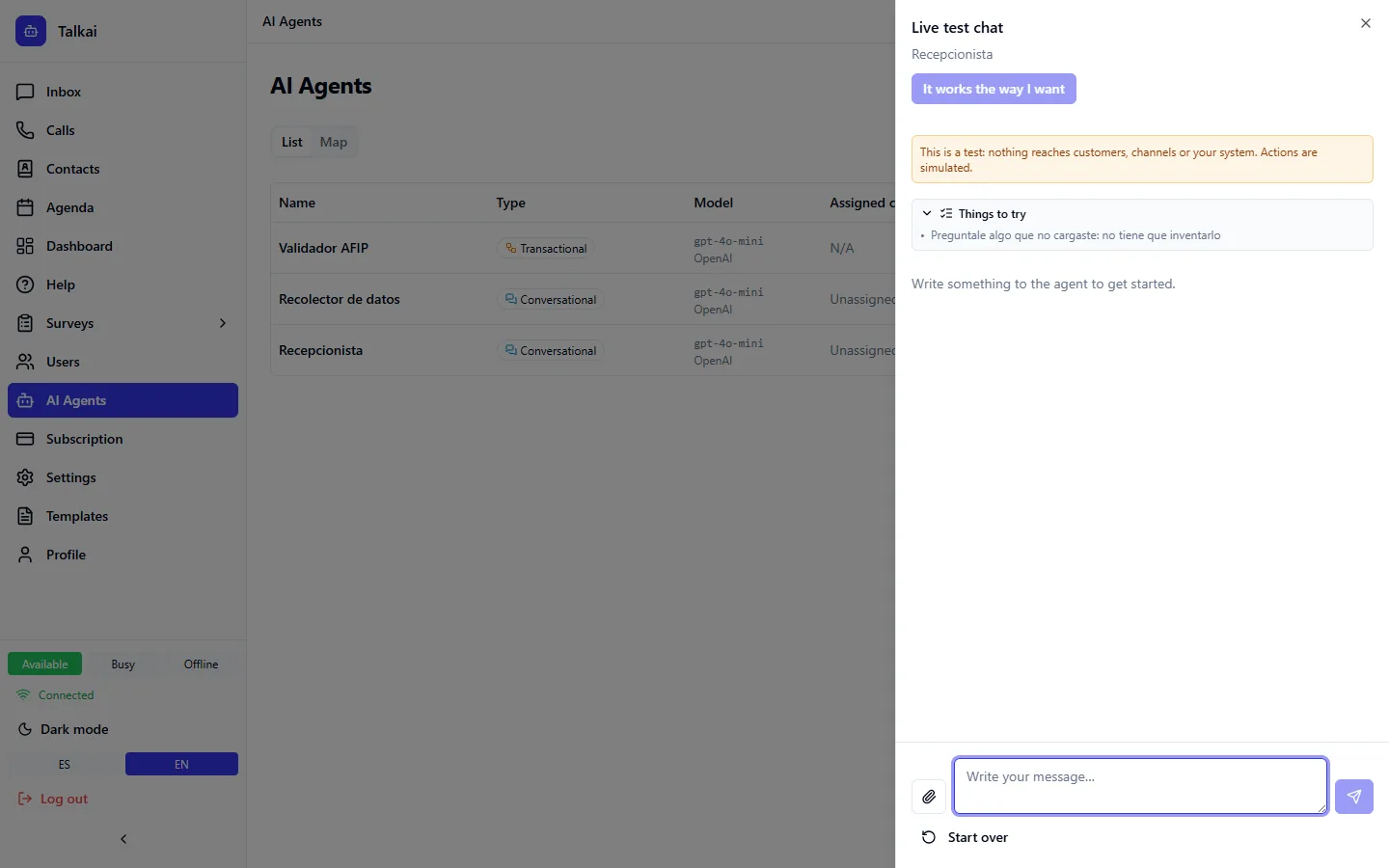
Before putting an agent in front of customers, you try it by chatting with it. Activating requires that test: you must confirm it works the way you want.
How to test
➡️
Step:In the agents list click Try in the chat on the agent.
➡️
Step:Write to it the way a customer would. You can attach images, PDF, Word, Excel or CSV files (up to 3 files per message, up to 10 MB each).
➡️
Step:Watch the replies and the consultations it makes. At the bottom there are Things to try: suggested messages based on the agent's case.
➡️
Step:When it answers well, click Works the way I want and confirm. From then on you can activate it.
Things to keep in mind
- The automatic scenario test does not enable activation: it helps, but you are the one who confirms, by chatting.
- A transactional agent is tested through the agent that consults it.
- In the conversation you will see marks of what happened, for example "Consulted: agent name".
- If you change the agent, it is worth testing it again.
💡
Tip:Also try the awkward cases: a customer who does not give the data, an unreadable file, an off-topic question.
Common mistakes
- Confirming after a single correct answer.
- Forgetting the last step: assigning a channel after activating.