Tools, notifications and automatic tags
Who this is for: whoever manages the account.
What it is for
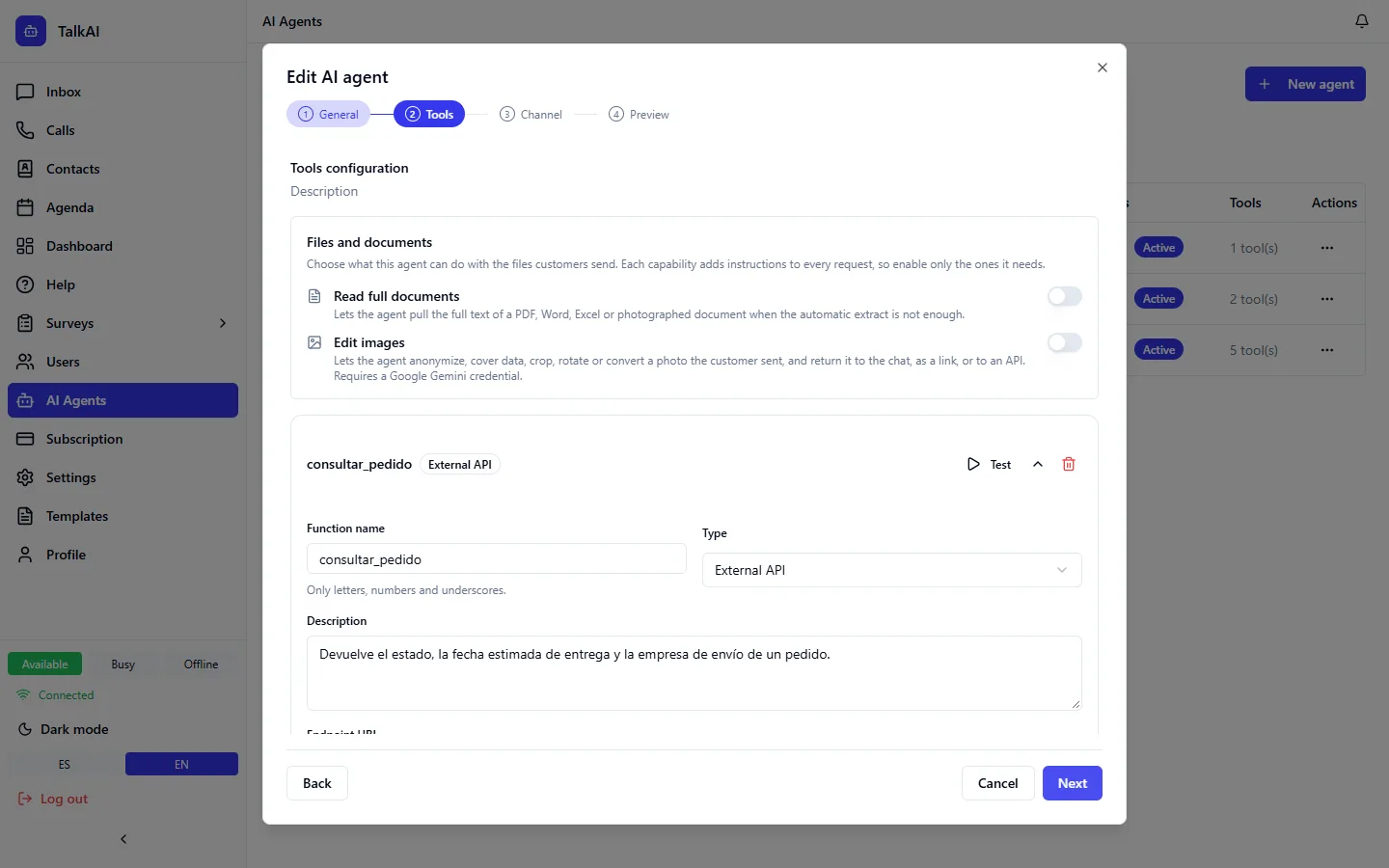
Besides chatting, an agent can run actions. That turns a chatbot into an assistant that operates. They are set up in the Tools step.
Calling your API (external API)
The agent queries one of your systems (stock, prices, order status, a service record). You configure:
- Name and description of the function.
- URL and method (GET, POST, PUT, DELETE).
- Headers (for example your API key). They are stored encrypted.
- Parameters that are sent.
System actions
| Action | What it does |
|---|---|
| Escalate to a person | Moves the conversation to the human team |
| Tag | Applies a tag to the conversation |
| Close the conversation | Closes it with a summary |
| Webhook | Notifies an external system |
| Notify a user or department | Notifies the team inside TalkAI and the agent keeps answering |
| Notify the owner outside TalkAI | Notifies a person through an external channel |
Consult another agent (consult_agent) | Asks a transactional agent something without handing over the conversation |
Send a template (send_template) | Sends a WhatsApp template without variables, for example a button menu |
Read attachments (read_attachment) | Reads PDF, Word, Excel, CSV, text and photos of documents |
Edit images and PDFs (edit_media) | Redacts, crops, retouches, rotates or converts. See Attachments |
| Verify receipts with AFIP | Verifies invoices (Argentina only). See AFIP validation |
| Calendar | Offer slots, book, list, reschedule and cancel appointments. See Calendar |
If send_template sends nothing
The tool rejects the template, and the agent seems silent, in three typical cases:
- The template name or language does not match exactly (watch out for accents).
- The template has a media header that could not be resolved.
- The template has variables: this tool only sends templates without variables.
Automatic triggers
Some actions can fire on their own on an event, without the agent deciding: on start, on close, on transfer to another AI agent or on escalation to a person.
Arguments accept variables that are replaced with real data: {{customerName}}, {{customerPhone}}, {{conversationId}}, {{lastUserMessage}}, {{summary}}.
Automatic notifications
In the General step you can make the agent notify your team on each event (start, close, escalation, transfer). For each one you choose whether to notify, which department or user, and a summary with variables.
Automatic tags
In the same way, the agent can tag the conversation depending on the event. For each one you choose the tag.
Common mistakes
- Saving a tool without testing it.
- Generic descriptions: the agent does not know when to use it.
- Expecting
send_templateto fill in variables.