Webchat: a chat for your website
Who it is for: whoever manages the account
Webchat is a chat widget you install on your site so visitors can write to you. Those conversations reach your TalkAI Inbox.
Create a Webchat channel
Go to Settings > Webchat and use the creation wizard (5 steps).
1. General and routing
- Name of the channel.
- Routing: who gets the conversations. You choose between an AI agent or a department.
2. Form fields (pre-chat)
Before chatting, the visitor can fill in a form. You define the fields (text, email, phone, text area, select, checkboxes).
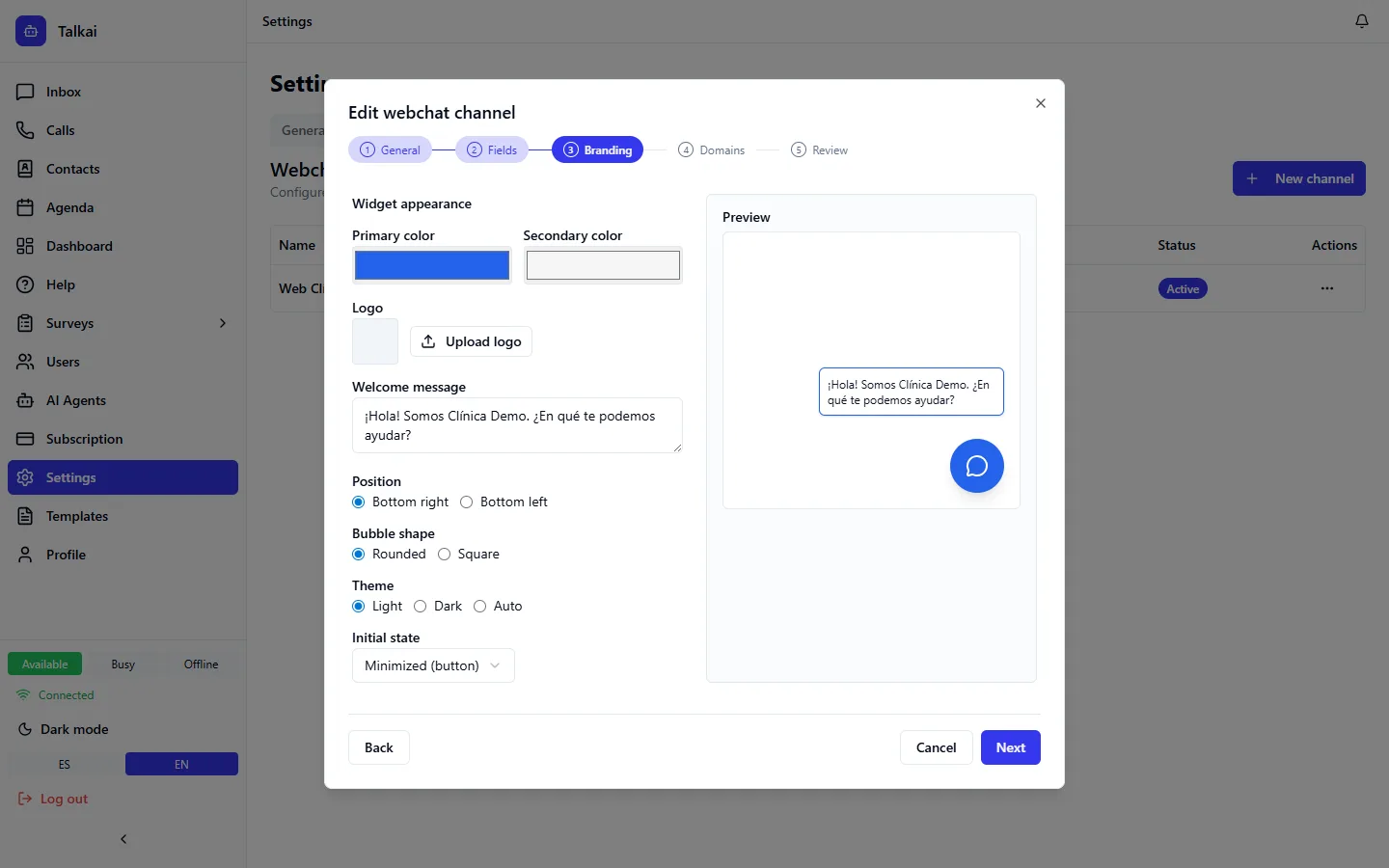
3. Customization
- Colors (primary and secondary) and logo.
- Welcome message.
- Position: bottom right or left.
- Bubble shape: rounded or square.
- Theme: light, dark or automatic.
- Initial state: minimized or expanded (with optional auto-open).
- Widget language.
There is a live preview while you edit.
4. Allowed domains
List the domains where the widget can work (one per line). Wildcards (*.yourdomain.com) and localhost for testing are accepted. Only those sites can load the chat.
5. Review
You review everything and create the channel.
Copy and install the snippet
When you create the channel, TalkAI shows the snippet. You can get it again later from Settings > Webchat, with the channel's View snippet button. Paste it in your site's <head> or before closing the <body>:
<script src="https://talkai.com.ar/widget.js" data-channel-key="YOUR-CHANNEL-KEY" defer></script>
The key (data-channel-key) is your channel's; the snippet TalkAI shows already includes it. The widget loads by itself and appears as a floating bubble.
Common mistakes
- The chat does not show up: the site's domain is not in the allowed domains list.
- I cannot create the channel: the form is missing a required email or phone field.