Contact cards, forwarding and reactions
Who it is for: people who handle conversations
What it is for
Three actions that save time inside a conversation: share a contact, pass a message to another conversation and react without typing.
Send a contact card
➡️
Step:In the message box, open the Attach menu (the paperclip) and choose Contact.
➡️
Step:Pick contacts from your address book or enter one by hand with name and phone. You can send up to 5 at a time.
➡️
Step:Send. The customer receives it as a WhatsApp contact card.
Receive a contact card
When the customer sends you a contact, you see it as a card with name, phones and emails. You can copy the phone with one click and save it to Contacts with the add button.
ℹ️
Note:If the contact already exists, saving may fail: TalkAI lets you know.
Forward a message
➡️
Step:Hover over the message and tap Forward.
➡️
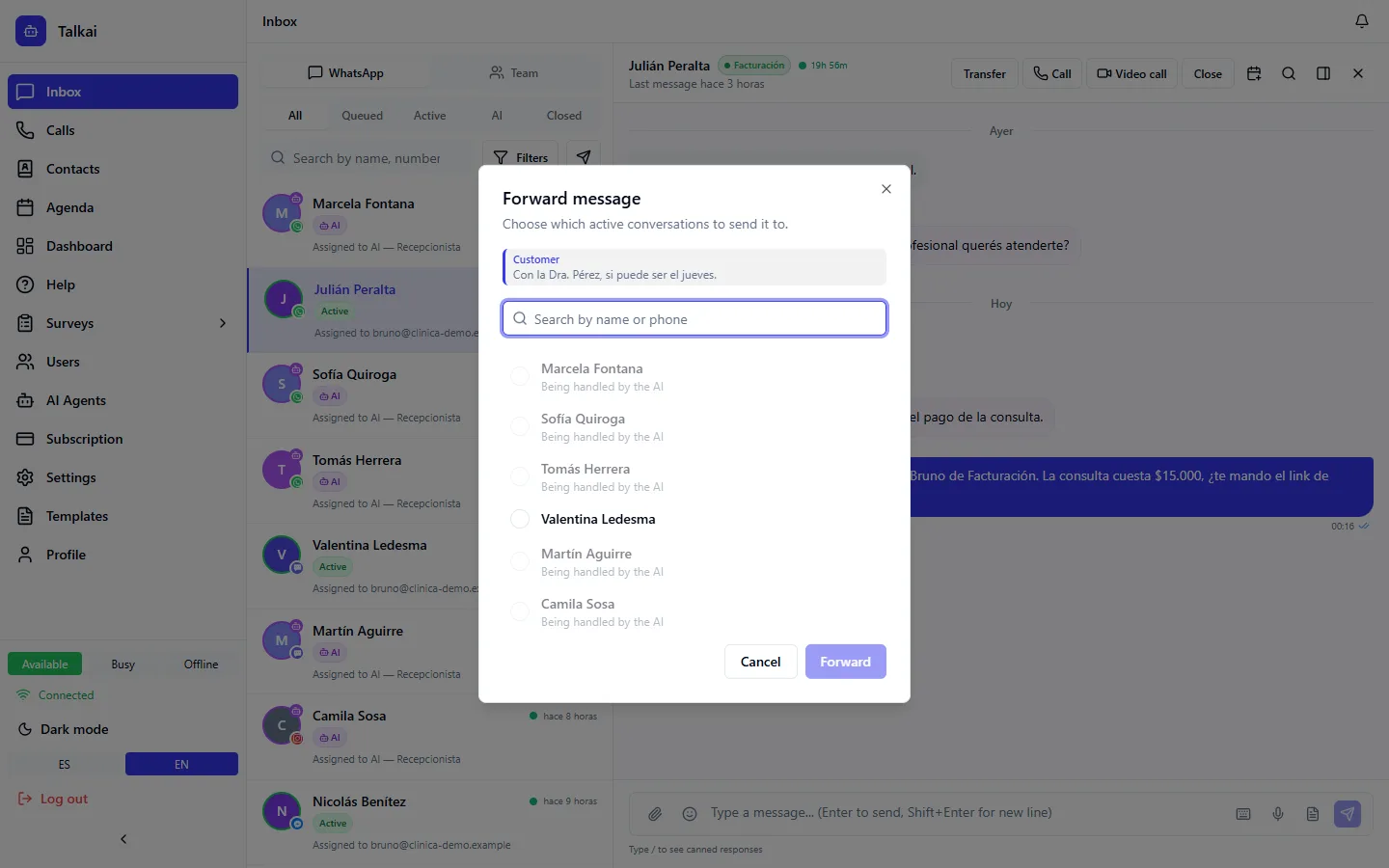
Step:Choose which active conversations to send it to (up to 5 at a time). You can search by name or phone.
➡️
Step:Confirm with Forward to N conversations.
You can forward text messages, files and contact cards. Some conversations do not accept forwarding and the reason is shown:
- Those being handled by the AI.
- Those queued with no assigned agent.
- WhatsApp ones with the 24-hour window closed.
React to a message
➡️
Step:Hover over the message and tap the smiley icon.
➡️
Step:Pick one of the six quick reactions or tap + to open all emojis.
The reaction sticks to the message. To remove it, tap the same reaction again. The customer's reactions are also shown, distinguished from the team's.
Reply with a quote
The Reply button in the same menu quotes the message in your answer.
Common mistakes
- The buttons do not show: they only appear when you hover over the message (on touch screens they are dimmed).
- I cannot react to an old message: messages without a WhatsApp identifier do not support reactions or quoted replies.