Outbound calls
Who it's for: whoever handles conversations
What it's for
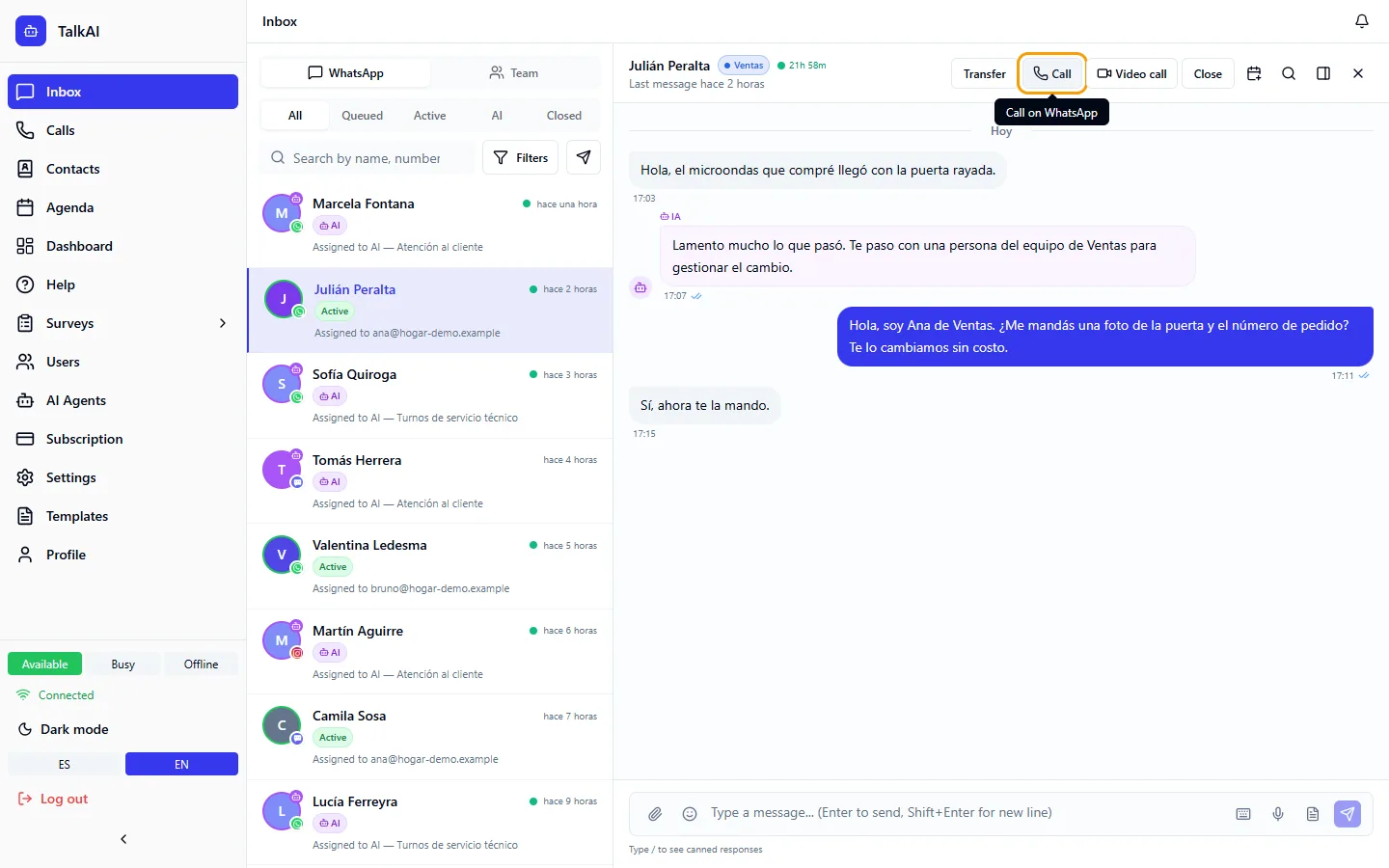
You can call a customer over WhatsApp from the conversation with them, without leaving the browser. WhatsApp requires the customer to authorize it first.
Call a customer
➡️
Step:Open the conversation with the customer.
➡️
Step:Click the Call button in the conversation header.
➡️
Step:If the customer hasn't given permission yet, TalkAI offers to ask for permission to call. Confirm with Send request.
➡️
Step:When the customer accepts, click Call again. While it rings you see "Calling…" and "Ringing…".
How permission works
- The request reaches the customer as a message with buttons to accept or decline, and their answer appears in the chat.
- If they accept, the permission lasts 7 days, or doesn't expire if the customer chooses to always allow it.
- You can ask at most once a day and twice a week.
- The request can only be sent while the conversation has the 24-hour window open.
- If the customer doesn't answer 4 calls in a row, the permission is lost automatically. They can also remove it themselves from the business profile.
⚠️
Warning:Ask for permission only when needed: WhatsApp limits how many times you can ask.
During the call
The same controls as on incoming calls work: mute, hold (the customer hears music) and transfer to another agent. See Voice calls.
Log
Outbound calls are logged in Calls (/calls) along with incoming ones.
Common mistakes
- "The customer doesn't have a valid permission": ask for permission again.
- "The 24-hour window is closed": the customer has to write first.
- "No microphone access": enable it in the browser.